
Understanding the basics of ps2 slim modification
What Makes the PS2 Slim a Popular Choice for Modding?
The PlayStation 2 Slim, often called the "slim model," stands out for its compact design and reliable hardware. Many gamers are drawn to this console because it offers a straightforward way to upgrade and enhance the gaming experience. Whether you want to load games from a USB drive, set up an external HDD, or explore alternative browsers for displaying websites correctly, the PS2 Slim provides a flexible platform for mods.
Why Consider Modifying Your PS2 Slim?
Modifying your PS2 Slim opens up a world of possibilities. With the right mods, you can:
- Install custom firmware and apps like OPL (Open PS2 Loader) to load game backups from a USB or SMB share
- Upgrade your console to support more controllers or alternative power builds
- Improve the display on your screen or use an alternative browser to display websites correctly
- Access a wider library of games and features not available on the stock system
These enhancements can make your console the ultimate retro gaming hub, especially when compared to the older fat model. The process is pretty straight forward for those with some technical know-how, but even beginners can get started with the right guidance.
Key Concepts and Terms to Know
Before diving into the modding process, it’s helpful to understand some basic terms:
- SMB Share: A network protocol that lets you load games from a shared folder on your PC or NAS.
- OPL: Open PS2 Loader, a popular app for loading games from USB, SMB, or internal install options.
- Mod: Any modification, whether hardware or software, that changes how your PS2 Slim operates.
- Memory Card: Essential for saving game progress and sometimes required for running certain mods or apps.
For a deeper dive into how console mods can enhance your PlayStation 2 experience, check out this guide on console mods for PlayStation 2.
What to Expect Next
As you explore the world of PS2 Slim mods, you’ll encounter topics like essential tools, hardware upgrades, and troubleshooting tips. Each step will help you build a more powerful and versatile console, whether you want to install new parts, set up an SMB share, or simply get your games running smoother. The process is pretty straight forward if you follow trusted resources and understand the basics before you start.

Essential tools and preparation before starting
Gathering Your Tools and Getting Ready
Before you start any PS2 Slim mod, preparation is key. The process is pretty straight forward, but having the right parts and tools will make everything smoother. Whether you’re planning a hardware upgrade, installing custom firmware, or setting up an SMB share for loading game backups, a little prep goes a long way.
- Phillips screwdriver: Needed for opening the console and accessing the board.
- Precision tools: Useful for handling small screws and delicate parts inside the slim model.
- USB drive or external HDD: Essential for transferring files, game backups, and apps like OPL (Open PS2 Loader).
- Memory card: Required for storing mod files and booting custom firmware. Some mods use the memory card for internal install methods.
- Compatible controller: For navigating menus and testing your mods after install.
- Display and power cables: Make sure your screen and power setup are ready for testing the console after each step.
It’s also important to have a reliable internet connection and an alternative browser if you plan to download files or display websites correctly on your PC. Some guides recommend using an upgrade alternative browser to ensure you can access and display websites for downloading mod files or troubleshooting tips.
Before you start, check that your PS2 Slim is working as expected. Test the controller, make sure the console powers on, and confirm that it displays on your screen. This helps you spot any issues that might not be related to your mods later.
For those looking to explore the ultimate list of Game Boy Color games while preparing their PS2 Slim, check out this closer look at the best Game Boy Color games for every type of player. It’s a great way to get inspired for your next retro gaming session.
Finally, keep a log register of your steps and any changes you make. This will help if you need to troubleshoot or register a reply in community threads. Many modders share their experiences in forums, so documenting your build can also help others in the community.
Popular hardware modifications for ps2 slim
Key Hardware Mods to Boost Your PS2 Slim
Upgrading your PS2 Slim can unlock new ways to play and enjoy your favorite games. Hardware modifications are popular among enthusiasts looking to get more from their console. Here’s a look at some of the most effective mods and what they offer.
- USB and External HDD Support: Adding USB ports or connecting an external HDD allows you to load games and game backups without relying on the aging optical drive. This is especially useful for the slim model, which lacks an internal HDD bay like the fat model. With the right mod, you can use Open PS2 Loader (OPL) to load games from a USB drive or SMB share on your network.
- Power Supply Upgrades: Swapping out the power board or using a more reliable adapter can help prevent common power issues. This is a straight forward mod that can extend the life of your console.
- Cooling and Noise Reduction: Installing a better fan or thermal pads can keep your PS2 Slim running cooler and quieter, especially if you plan on long gaming sessions or have installed additional hardware inside the case.
- Video Output Mods: Some users choose to upgrade the video output for better display quality on modern screens. This might involve installing a component video mod board or using an HDMI adapter for improved browser display and game visuals.
- Controller and Memory Card Ports: Replacing worn-out parts or adding alternative controller ports can improve reliability. You can also install a memory card mod to increase storage or enable new features like log register and register reply for advanced save management.
Choosing the Right Parts and Installation Tips
When selecting parts for your build, make sure they are compatible with your specific slim model. Some mods are designed for certain board revisions, so double-check before you buy. Many guides and threads on trusted forums can walk you through the process, and some websites correctly display step-by-step instructions with photos.
For those looking for the ultimate mod, combining several upgrades—like USB support, power supply improvements, and a better screen output—can transform your console into a versatile gaming hub. Always follow safety guidelines and use the correct tools to avoid damaging your PS2 Slim.
If you want to explore more about enhancing your retro gaming experience, check out this comprehensive guide to Game Boy Advance SP with charger for inspiration on portable mods and upgrades.
Exploring software modifications and custom firmware
Custom Firmware and Homebrew Applications
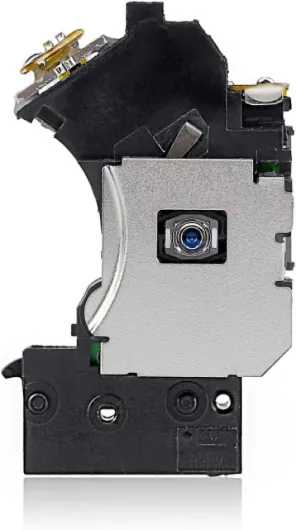
Once your PS2 Slim hardware is ready, software modifications open up a world of possibilities. Custom firmware and homebrew apps let you unlock features not available on the stock console. Open PS2 Loader (OPL) is a popular choice, allowing you to load games from a USB drive, external HDD, or over a network using SMB share. This means you can play backups or imports without constantly swapping discs, which can help preserve your original games and the console's laser.
Setting Up Open PS2 Loader (OPL)
OPL is often installed on a memory card or internal storage. The process is pretty straight forward if you have the right tools and follow guides from trusted websites. Once installed, OPL can scan your USB, SMB share, or internal HDD for compatible games. Make sure your games are in the correct format and that your SMB share is configured properly for smooth network loading. Many users find the SMB method especially useful for the slim model, as it lacks an internal HDD bay like the fat model.
- USB loading: Plug an external HDD or USB stick into the console. OPL will detect and display your game backups.
- SMB network loading: Set up a shared folder on your PC. The PS2 Slim connects via network cable or adapter, letting you load games directly from your computer.
- Memory card boot: Some mods allow you to boot OPL and other apps directly from a memory card, making the process even more convenient.
Enhancing the User Experience
With software mods, you can also install alternative browsers to display websites correctly on your TV. While the PS2's built-in browser is limited, some homebrew apps offer better compatibility and can display websites or log register activity more effectively. This is handy if you want to browse gaming forums or download updates directly to your console.
Tips for a Smooth Software Modding Process
- Always use trusted sources for downloading custom firmware and apps.
- Double-check compatibility with your PS2 Slim model and board revision before you install app packages.
- Keep backups of your memory card data in case you need to restore your system.
- Follow guides and threads from established communities, where you can register reply or ask for help if you run into issues.
With the right software mods installed, your PS2 Slim becomes a more versatile gaming machine. You can load games from various sources, use alternative browsers, and even upgrade alternative apps to enhance your experience. Just remember to power off the console properly and avoid unsupported builds to prevent issues.
Legal and ethical considerations in ps2 slim modification
Understanding the Legal Landscape of PS2 Slim Mods
Before you start to mod your PS2 Slim, it’s important to know the legal and ethical boundaries. Modifying your console can unlock new features, like loading games from a USB drive or an external HDD, but not all mods are treated equally under the law. In many regions, hardware and software modifications that enable the use of game backups, or bypass copy protection, may violate copyright laws. Always check your local regulations before installing custom firmware or alternative browsers that allow you to display websites or load games from an SMB share.
Ethical Use of Mods and Game Backups
While mods can enhance your gaming experience, ethical considerations matter. Using OPL (Open PS2 Loader) to load games from a memory card, internal install, or SMB share is a popular option. However, it’s best to use game backups only for titles you own. Sharing or downloading copyrighted games is illegal and undermines the gaming community. If you’re planning to upgrade or install apps, make sure you’re using legitimate sources and not pirated content.
Risks and Warranties
Opening your PS2 Slim to install a mod board or upgrade internal parts can void your warranty. Even if your console is out of warranty, incorrect installation or power issues can damage the board or other components. It’s pretty straight forward to follow guides, but mistakes can happen. Always use the right tools and double-check compatibility between fat model and slim model parts. If you’re unsure, seek support from trusted forums or register reply threads for advice.
Online Communities and Support
Many websites and forums offer troubleshooting tips and support for PS2 Slim mods. When you log register on these sites, you can access guides on how to correctly upgrade your console, install apps, or build the ultimate setup for your needs. Make sure the websites you use display correctly in your browser and are reputable sources. Avoid sites that promote illegal downloads or questionable mods.
- Always use mods for personal, legal use
- Respect copyright and intellectual property rights
- Consult community threads for safe installation tips
- Keep your console’s power requirements in mind when installing new parts
Troubleshooting and support resources
Common Issues After Modding
After you install mods or custom firmware on your PS2 Slim, you might run into a few common problems. Sometimes, the console may not power on correctly, or the screen might not display as expected. Issues can also pop up when trying to load games from a USB drive, external HDD, or SMB share. If you notice your controller isn’t responding or your memory card isn’t recognized, these are often signs that something didn’t install properly or a part isn’t compatible with your build.
Steps to Diagnose Problems
- Double-check all hardware connections on the board, especially if you’ve done a physical mod.
- Make sure your OPL (Open PS2 Loader) or any other installed app is the latest version and configured to load games from your chosen source (USB, SMB, or internal install).
- Test your games on another console or with a different memory card to rule out compatibility issues.
- If you’re using an alternative browser to display websites or manage files, ensure it’s compatible with your slim model and installed correctly.
Where to Find Support and Resources
There are many online forums and websites dedicated to PS2 Slim mods and troubleshooting. Look for threads with a thread starter that matches your issue, and register to reply or log register for updates. Many communities share guides on how to upgrade alternative firmware or display websites correctly using the PS2’s browser. If you’re stuck, searching for your specific error message or symptoms can lead you to a solution that’s pretty straight forward.
| Resource | What It Offers |
|---|---|
| Official modding forums | Step-by-step guides, troubleshooting threads, and mod recommendations for both fat and slim models |
| Video tutorials | Visual walkthroughs for installing mods, setting up SMB shares, and using OPL |
| Parts suppliers | Replacement parts for your board, controller, or memory card if something goes wrong |
Best Practices for a Smooth Experience
- Always back up your game backups and save files before starting any mod or upgrade.
- Keep a log register of changes you make to your console, so you can reverse them if needed.
- Use trusted websites and sources for your mods and apps to avoid compatibility issues.
- If you’re not sure about a step, ask in a community thread before proceeding. Most issues have already been solved by others.