
Understanding Game Boy Color capture output
Why capturing Game Boy Color video output is unique
The Game Boy Color, released in the late 1990s, was designed for handheld gaming with a simple LCD screen. Unlike modern consoles, it does not have a built-in video output or USB port for easy capture. This makes recording or streaming original game footage a bit more challenging. Many gamers and content creators want to share their boy gameplay, stream game sessions, or archive classic titles, but the unmodified game device does not natively support video capture.
Understanding the challenges and solutions
Capturing video from a Game Boy Color requires special hardware or modifications. Since the device was not built with video feed output in mind, you need to either modify the hardware or use external solutions. Some options involve installing an interceptor game board or a powered USB video capture device inside the console. Others rely on external adapters that connect via USB cable to your computer and work with open source software to record or stream the video stream.
- Original game hardware does not support video output, so you need extra devices.
- Some solutions require opening the console and soldering, while others are plug-and-play.
- USB video capture cards are popular for their ease of use and compatibility with modern computers.
- Firmware updates and open source software can help improve compatibility and capture quality.
Why this matters for gamers and creators
If you want to stream game sessions, create gameplay videos, or simply archive your favorite stars from the Game Boy Color era, understanding these capture methods is essential. With the right hardware and software, you can turn your boy turned classic handheld into a modern content creation device. For those interested in further customizing their handheld experience, you might also want to check out this guide on how to replace your GBA SP shell for a fresh new look, which covers hardware modifications similar to those needed for video capture.

Available hardware solutions for capturing Game Boy Color output
Popular Devices for Capturing Game Boy Color Video
Capturing video output from an original Game Boy Color is not as straightforward as with modern consoles. The device was never designed to send a video feed to an external display, so specialized hardware is required. Over the years, several solutions have emerged, each with its own advantages and limitations.
- Game Boy Color HDMI Mods: These hardware mods involve installing a board inside your Game Boy Color. The modded device can then output digital video, often via HDMI or USB. This approach preserves the look and feel of the original game while providing a clean video stream for capture or streaming. Some mods are open source, allowing for community-driven improvements and support.
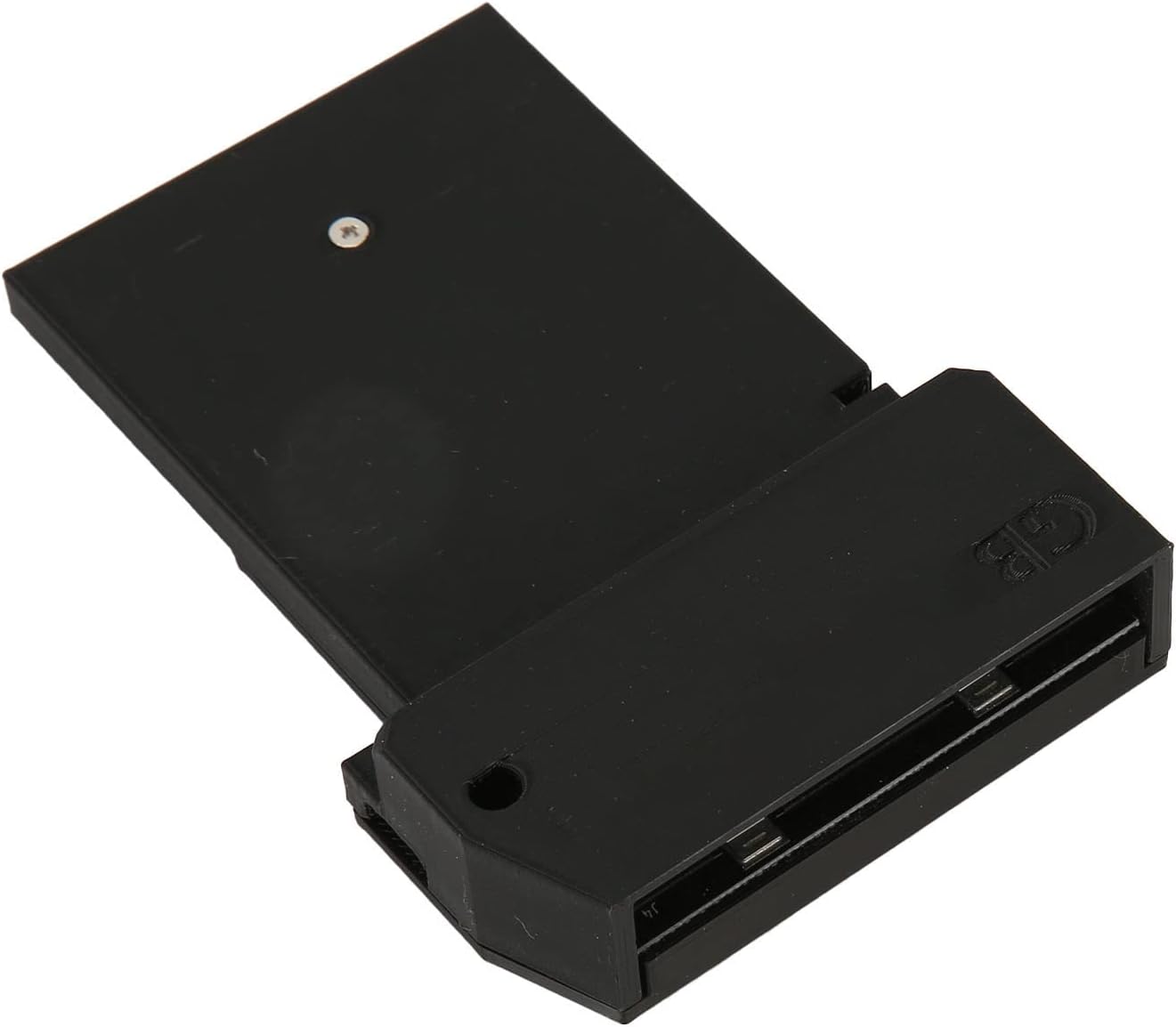
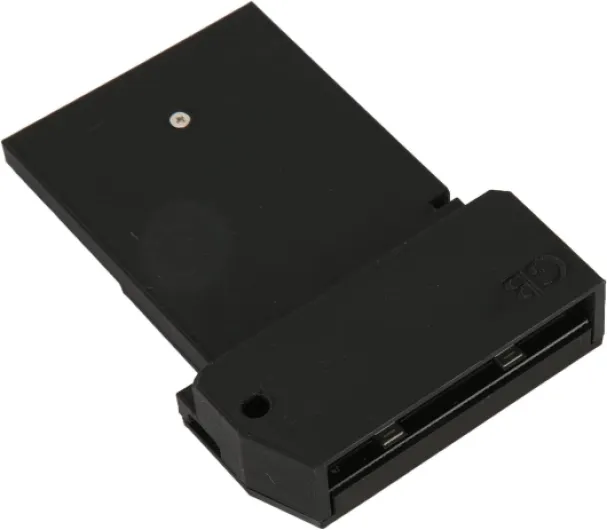
- External Video Interceptors: Devices like the Interceptor Game or similar adapters connect between the Game Boy Color and a display, capturing the video signal. While these are less invasive than internal mods, they may require a specific firmware or powered USB connection for optimal performance.
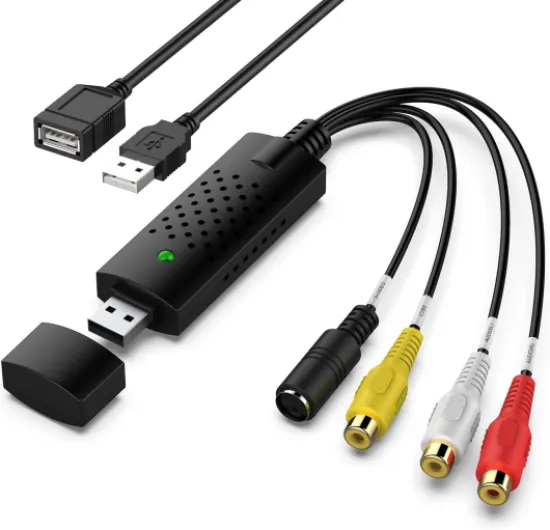
- USB Capture Cards: Once you have a video output from your Game Boy Color, a USB video capture card is essential. These cards connect to your computer via USB and allow you to record or stream gameplay footage. There are many options, from simple plug-and-play devices to more advanced cards with open video support and customizable software.
Comparing Hardware Solutions
| Solution | Modification Required | Output Type | Ease of Use | Quality |
|---|---|---|---|---|
| HDMI/USB Mod Board | Internal (requires opening device) | HDMI/USB | Moderate | High |
| External Interceptor | None (plug-in) | Composite/USB | Easy | Medium |
| Camera Pointed at Screen | None | Video File | Easy | Low |
Considerations Before Choosing a Capture Device
- Preserving the Unmodified Game Experience: Some users prefer not to open or modify their Game Boy Color. External interceptors or camera setups are less invasive, but may not offer the best video quality.
- Firmware and Software Support: Check if the device you choose has active support and regular firmware updates. Open source options can be helpful for troubleshooting and customization.
- Privacy Choices: When using capture software, review privacy settings to control how your footage is stored or shared, especially if you plan to stream game sessions online.
For those interested in further customizing their handhelds, you might find inspiration in this guide on creative modifications for Nintendo DS. Many of the same principles apply when considering mods for Game Boy Color capture.
Setting up your Game Boy Color for video capture
Preparing Your Game Boy Color for Video Capture
Getting your Game Boy Color ready for video capture is a crucial step. Whether you want to stream game footage, record gameplay, or simply display your favorite titles on a bigger screen, the setup process can be straightforward with the right approach. Here’s how you can get started:
- Check Your Device: Make sure your Game Boy Color is in good working order. An unmodified game system will need extra hardware, like an Interceptor Game device or a capture mod, to output video.
- Choose the Right Capture Solution: Some solutions require internal modification, while others use external adapters. USB video capture devices are popular for their easy setup and support for powered USB connections. If you want to avoid modifying your original game hardware, look for plug-and-play options.
- Connect the Hardware: If you’re using a capture mod, follow the manufacturer’s instructions to install it. For external devices, simply connect the Game Boy Color to the capture device using the appropriate cable—often a USB cable or a specialized video feed cable.
- Install Firmware and Software: Some capture devices require firmware updates or open source software to function. Always download software from trusted sources to protect your privacy choices and ensure compatibility.
- Test the Video Stream: Power on your Game Boy Color and check if the video stream appears on your computer or monitor. Adjust settings in your capture software for the best quality. If you encounter issues, refer to troubleshooting steps or device support pages for help.
For users interested in customizing their gaming setup, you might also want to explore how to personalize your Nintendo Switch with custom skins. While it’s a different device, the guide offers insights into making your gaming experience truly your own.
With the right preparation and hardware, capturing and streaming Game Boy Color gameplay can be easy and rewarding. Take your time with each step, and you’ll be ready to share your favorite boy gameplay footage in no time.
Choosing the right capture card and software
Understanding Capture Cards and USB Devices
When it comes to capturing video from your Game Boy Color, the right capture card or USB video device is essential. These devices act as the bridge between your modified or unmodified game hardware and your computer, allowing you to record or stream game footage. The choice you make will impact the quality and reliability of your video feed, so it's worth considering your needs and setup before making a purchase.
Key Features to Look For
- Compatibility: Ensure the capture card or USB device supports the video output from your Game Boy Color. Some solutions require a powered USB connection or specific firmware support.
- Input Options: Devices may offer composite, S-Video, or even direct digital connections. The original game hardware often needs a mod or an interceptor device to output video, so check what your setup provides.
- Resolution and Frame Rate: Look for cards that can handle the native resolution and frame rate of Game Boy Color gameplay. This helps maintain the authenticity of the footage.
- Software Support: Open source software like OBS Studio is popular for capturing and streaming. Make sure your device is compatible with your chosen software for an easy setup.
- Privacy Choices: Some capture cards include features that help manage privacy, such as hardware mute or video blackout options. Consider these if you plan to stream game sessions live.
Popular Capture Solutions
There are several capture cards and USB video devices on the market, each with their own strengths. Some are designed specifically for retro consoles, while others are general-purpose USB video capture cards. Devices like the Interceptor Game or the Star Boy series are tailored for handhelds, offering plug-and-play support and easy firmware updates. For those who prefer open video standards, open source hardware and software combinations are available, though they may require more setup.
Connecting and Using Your Capture Device
- Connect your Game Boy Color to the capture card using the appropriate cable (often a custom or modified USB cable for unmodified game hardware).
- Plug the capture card into your computer's USB port. A powered USB hub may help if you experience connection issues.
- Install any required drivers or firmware updates for your device. Details are usually provided by the manufacturer.
- Open your chosen capture software and select the device as your video source. You should see the live video feed from your Game Boy Color.
- Adjust settings for resolution, frame rate, and audio as needed to optimize your capture or stream.
Tips for a Smooth Experience
Choosing a reliable capture card or USB video device will help you avoid common issues like dropped frames or audio sync problems. Look for devices with strong community support or open firmware, as these often receive regular updates and troubleshooting help. If you plan to capture stream sessions or share boy gameplay online, investing in a quality device will make the process much easier and more enjoyable.
Troubleshooting common capture issues
Common Problems When Capturing Game Boy Color Video
Capturing video from your Game Boy Color can be rewarding, but it’s not always easy. Here are some frequent issues and how to address them:- No Video Feed Detected: If your capture card or USB video device isn’t showing any footage, double-check all connections. Make sure the Game Boy is powered on and the USB cable is firmly attached. Some devices require a powered USB hub for stable operation.
- Software Not Recognizing Device: Sometimes, capture software won’t detect your capture card or interceptor game device. Try updating the software or switching to open source options that offer broader support. Also, confirm that your device drivers and firmware are up to date.
- Lag or Audio Sync Issues: If your video stream lags or audio is out of sync, close unnecessary programs to free up system resources. Lowering the capture resolution in your software settings can also help. For USB modifying solutions, ensure your USB ports are not overloaded.
- Poor Video Quality: If the captured footage looks blurry or washed out, adjust the brightness and contrast in your capture software. Using an unmodified game console can sometimes limit quality, but tweaking settings can make a difference. Some capture cards offer advanced options for color correction.
- Privacy Choices and Permissions: Some capture software may require additional permissions to access your USB video device. Make sure you grant the necessary access and review privacy choices in your operating system settings.
When to Seek Additional Support
If you’ve tried these steps and still have trouble, check the support documentation for your specific capture card or interceptor device. Online communities and forums can also help with details about your setup. Sometimes, simply restarting your computer or reconnecting the Game Boy can resolve stubborn issues. Remember, capturing and streaming original Game Boy gameplay is a process that may require patience. With the right hardware, software, and a bit of troubleshooting, you’ll be able to stream game footage or record your favorite boy turned star moments with ease.Tips for improving capture quality and experience
Fine-Tuning Your Game Boy Color Capture Setup
Improving the quality of your Game Boy Color video capture and overall experience is all about attention to detail. Here are some practical tips to help you get the most out of your setup:- Use a powered USB hub if your capture card or USB video device seems unstable. Some cards draw more power than a standard USB port can provide, especially when capturing long game sessions or streaming gameplay.
- Keep your firmware and software up to date. Capture devices and open source software often release updates that fix bugs, add support for new features, or improve compatibility with different video feeds. Check the manufacturer's website or the open source project page regularly.
- Adjust your capture software settings. Many programs allow you to tweak resolution, frame rate, and color correction. Experiment with these options to get the clearest footage from your unmodified Game Boy Color or any interceptor game device you use.
- Minimize cable interference. Use high-quality USB cables and keep them away from other electronic devices to reduce signal noise in your video stream. This is especially important if you’re using a USB modifying solution or capturing directly from the original game hardware.
- Test different capture cards if possible. Not all cards handle the Game Boy Color’s unique video output equally well. If you experience issues like dropped frames or poor color accuracy, trying another card can help.
- Close unnecessary software on your computer. Background programs can eat up resources, causing your capture stream to lag or stutter. For the best results, keep only your capture software and essential tools open during recording or streaming.
- Check privacy choices and permissions. Some capture software may require specific permissions to access your USB video device or save footage. Make sure you’ve granted the necessary access to avoid interruptions.
Extra Steps for a Smoother Experience
- Record a short test video before starting a full game session. This helps you spot any issues with the video feed or audio sync early, so you can make adjustments without losing important footage.
- Label your cables and devices. If you use multiple capture cards or USB devices, labeling helps you quickly identify the right setup for each game or stream step.
- Consult support forums and open source communities. If you run into persistent problems, these resources can offer detailed help and troubleshooting tips tailored to your specific capture card or software.