
Understanding PS3 audio output options
Exploring PS3 Audio Output Choices for Music Lovers
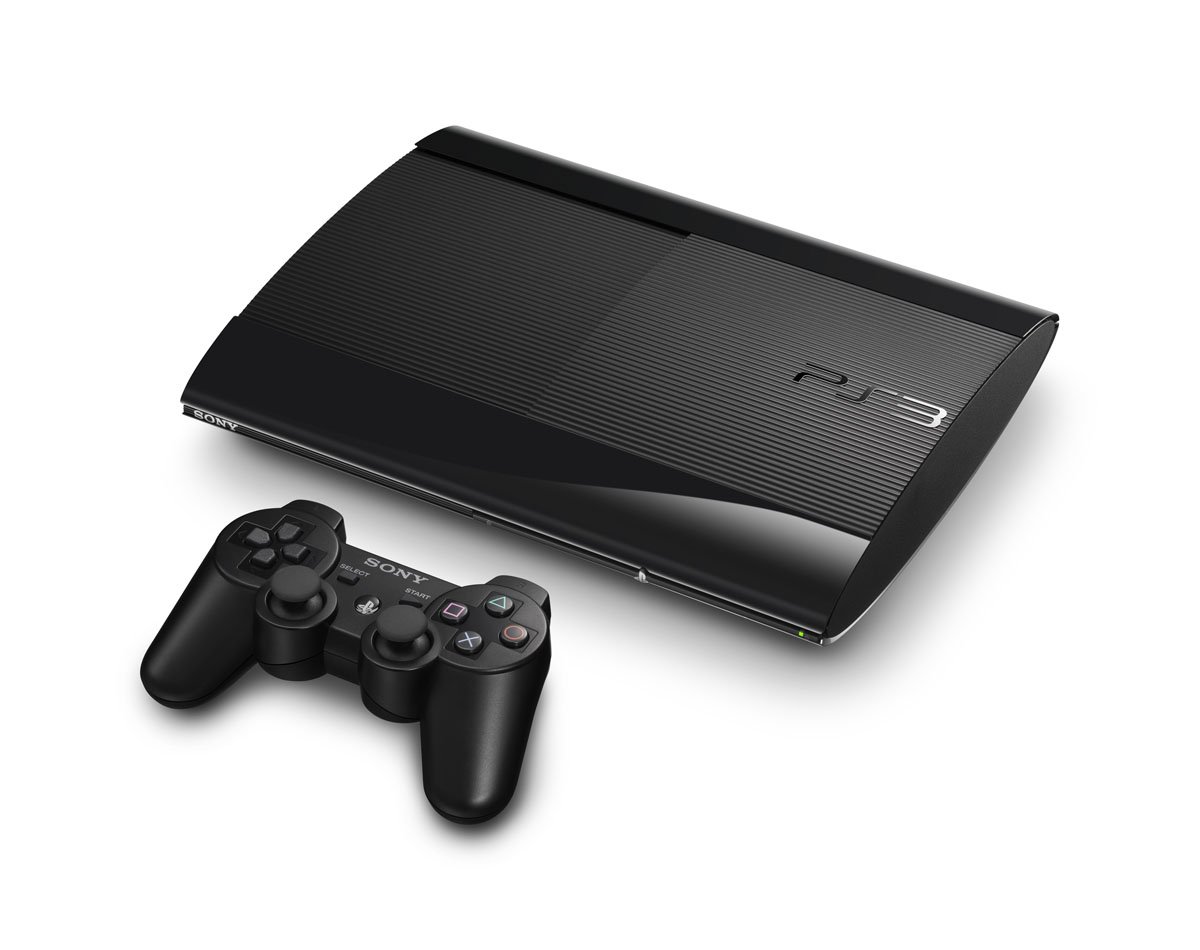
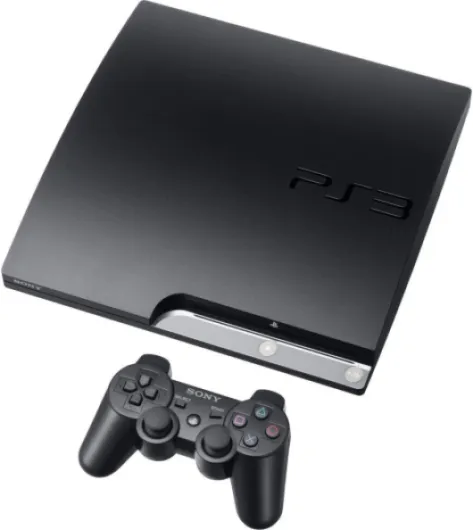
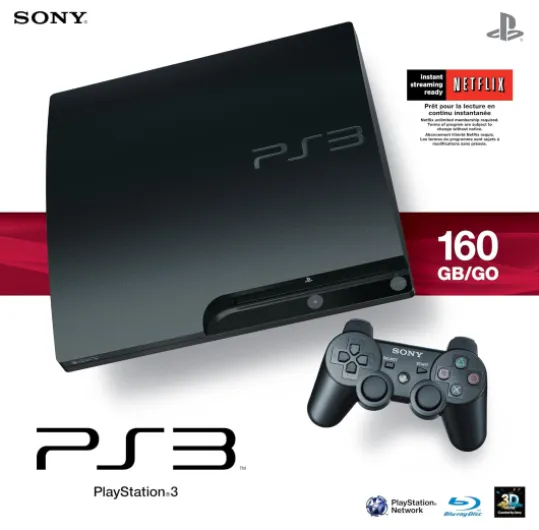
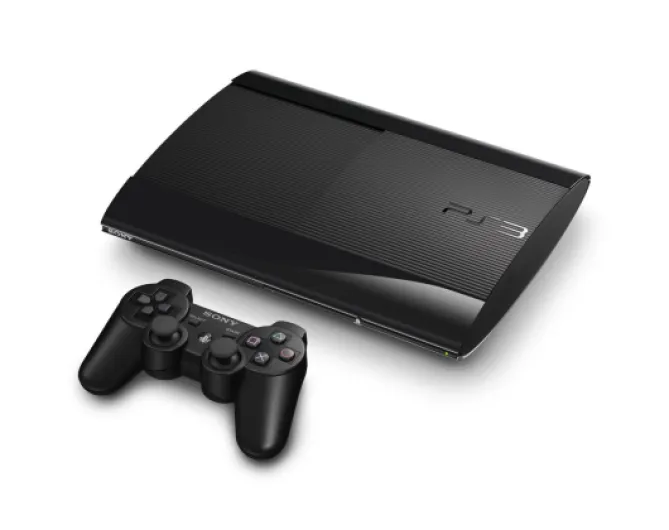
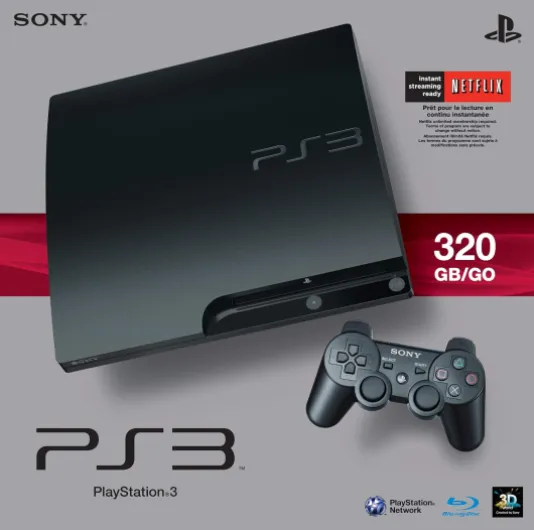
The PlayStation 3, released by Sony, is more than just a gaming console—it’s also a versatile music player. If you want to play CDs or enjoy high-quality sound, understanding the PS3’s audio output options is essential. The console supports a range of audio settings and output methods, making it suitable for everything from casual listening to more serious music setups.
- HDMI audio: For the best sound quality, connect your PS3 to your receiver or TV using an HDMI cable. This allows for multi channel audio, supporting formats like linear PCM and DTS CDs. HDMI also supports higher frequency settings, such as 44.1 kHz and 48 kHz, which are important for music playback.
- Optical digital output: If your receiver or sound system doesn’t support HDMI, the PS3’s optical output is a solid alternative. This connection can deliver clear, loud sound and supports multi channel audio output, making it a good fit for home theater setups.
- Analog audio output: For older receivers or basic setups, the PS3 offers standard RCA connections. While not as advanced as HDMI or optical, this method still provides reliable audio for playing CDs and other music formats.
When you play CDs or even Blu-ray discs, the PS3’s audio output settings will determine the quality and channel configuration of your music. The console lets you customize sound settings, such as output frequency and channel audio, to match your equipment and preferences. Features like crossfade playback and audio import options (including AAC kbps settings) add flexibility for music fans.
It’s worth noting that the PS3’s audio capabilities can be further enhanced with external equipment, which will be covered later. For those interested in optimizing their setup, exploring the benefits of a transparent keyboard for gamers can also offer unique control options for music and gaming alike.
Whether you’re playing Blu-ray discs, DTS CDs, or standard audio CDs, the PS3’s sound settings and output options are designed to deliver a satisfying listening experience. In the next section, we’ll look at how to choose the right cables and connections for your setup, ensuring you get the most from your music and gaming sessions.

Choosing the right cables and connections
Essential Connections for High-Quality Sound
To get the most out of your PS3’s CD playback, it’s important to understand which cables and connections will deliver the best audio experience. Sony designed the PS3 with multiple output options, allowing users to tailor their setup for music, movies, and gaming. The right choice depends on your sound system and personal preferences.
- HDMI cable: For most users, HDMI is the top choice. It supports multi channel audio, high frequency settings (up to 192 kHz), and is compatible with both linear PCM and bitstream formats. This means you can enjoy loud, clear sound whether you’re playing CDs, Blu ray discs, or streaming music.
- Optical digital (TOSLINK): If your receiver or soundbar doesn’t support HDMI audio, optical output is a reliable alternative. It transmits digital sound, supporting formats like DTS CDs and Dolby Digital, though it may not handle the highest frequency settings or all multi channel options.
- Analog (RCA): For older receivers or basic setups, the PS3’s analog output can still provide decent audio, but you’ll be limited to stereo sound and lower khz rates. This is less ideal for audiophiles or those wanting to play CDs with maximum fidelity.
When connecting your PS3, always use high-quality cables to minimize interference and signal loss. If you’re planning to use external audio equipment, like a dedicated music player or advanced receiver, check compatibility with your chosen output method. The PS3’s output settings menu lets you select which connection to use, so make sure your sound settings match your cable choice.
For readers interested in optimizing their entire gaming and music setup, exploring the benefits of a transparent keyboard for gamers can further enhance your entertainment experience.
Don’t forget to consider your environment—if you want to share your music settings or sound discoveries, using the share facebook icon or posting on twitter can help you connect with others who are passionate about audio output and settings. Whether you’re playing blu ray discs, importing music with aac kbps, or experimenting with crossfade playback, the right cables and connections are the foundation for great sound.
Configuring audio settings for optimal CD playback
Fine-tuning your PS3 sound for CD playback
Optimizing your PS3 audio settings can make a noticeable difference when you play CDs or enjoy music through your Sony console. The PS3 offers a range of output settings that let you tailor the sound to your preferences and equipment. Here’s how to get the most out of your music playback experience:- Access the Sound Settings: Navigate to the PS3’s main menu and find the Sound Settings section. Here, you’ll see options for Audio Output Settings and Music Settings.
- Choose the right output: If you’re using an HDMI cable, select HDMI Audio for the best quality. For older receivers or TVs, you might use optical or AV multi output. Make sure your receiver supports the chosen output type.
- Set the frequency: For CD playback, set the frequency to 44.1 kHz, which matches standard audio CDs. Some receivers can handle higher frequencies, but using 44.1 kHz ensures compatibility and avoids playback issues.
- Configure channel audio: If you have a multi channel receiver, select Linear PCM for uncompressed sound. For stereo setups, stick with 2-channel output. You can also enable DTS CDs or Dolby Digital if your receiver supports these formats.
- Adjust music settings: The PS3 allows you to enable Crossfade Playback for smoother transitions between tracks. You can also set AAC kbps for imported audio, but this won’t affect CD playback directly.
- Volume and loudness: Some users find that CD playback is quieter than playing Blu-ray discs or games. Use your receiver’s volume controls or the PS3’s Audio Output level adjustment to compensate.
Using external audio equipment with your PS3
Connecting Your PS3 to External Audio Equipment
For those who want to get the most out of music CDs or even play DTS CDs on their Sony PS3, using external audio equipment like a receiver or dedicated player can make a noticeable difference. The PS3 supports a variety of audio output options, so you can tailor your setup for the best sound quality.- HDMI Cable: For multi channel audio and the highest fidelity, connect your PS3 to your receiver or sound system using an HDMI cable. This allows for uncompressed linear PCM output, which is ideal for music playback and playing Blu-ray discs.
- Optical Digital Output: If your receiver doesn’t support HDMI audio, use the optical output. This supports formats like Dolby Digital and DTS, which are common in both music and Blu-ray playback.
- Analog Output: For older equipment, the PS3’s analog output can be used, but you may lose some audio quality and multi channel capabilities.
Optimizing Sound Settings for External Devices
After connecting your PS3, go to the sound settings menu. Here, you can select the audio output format that matches your receiver’s capabilities. For example, if your receiver supports 96 kHz or 192 kHz, set the frequency settings accordingly. This ensures you’re getting the best possible sound when you play CDs or music files.- Enable crossfade playback for smoother transitions between tracks.
- Adjust the audio output settings to match your equipment, whether you’re using HDMI, optical, or analog.
- For music import, choose the highest AAC kbps setting available for better quality.
Enhancing Your Listening Experience
Using a quality receiver or external player can make your music sound louder and clearer. Multi channel audio setups allow you to enjoy surround sound from compatible CDs and Blu-ray discs. If you’re sharing your experience on social media, like Twitter or Facebook, or want to post about your setup, mention the specific output settings and equipment used for the best results. Remember, every setup is unique. If you notice issues like low volume or missing channels, double-check your output and sound settings. Sometimes, a simple adjustment in the PS3’s audio menu can resolve these problems and help you enjoy your music collection to the fullest, whether you’re playing classic CDs or exploring new formats in February and beyond.Troubleshooting common audio issues during CD playback
Solving Audio Playback Problems on Your PS3
If your music doesn’t sound right when you play CDs on your Sony PS3, there are a few common issues and fixes to consider. Many users report problems like no sound, distorted output, or the wrong channel audio. Here’s how to address these concerns and get the best audio experience.- Check Output Settings: Make sure your audio output settings match your setup. If you’re using an HDMI cable, select HDMI audio in the PS3’s sound settings. For optical or AV cables, choose the correct output. Incorrect settings can cause missing channels or low volume.
- Frequency and Channel Configuration: The PS3 allows you to adjust frequency settings (like 44.1 kHz or 48 kHz) and multi channel output. If your receiver or player doesn’t support certain frequencies or formats (like DTS CDs or linear PCM), you might get no sound or loud static. Try switching to a supported frequency or stereo output.
- Receiver Compatibility: Some receivers or soundbars may not handle all PS3 audio formats. If you hear nothing or only some channels, set the PS3 to output standard stereo or use the audio test feature in the settings menu to confirm compatibility.
- Music Settings and Crossfade Playback: If you notice gaps or abrupt transitions between tracks, check the music settings for crossfade playback. Adjusting this can smooth out playback, especially when playing CDs or imported audio files (like AAC kbps tracks).
- External Equipment Issues: When using external audio equipment, ensure all cables are secure and the correct input is selected on your receiver. Sometimes, simply unplugging and reconnecting the HDMI or optical cable can resolve sound issues.
- Blu-ray and CD Playback Differences: Playing Blu-ray discs or using the PS3 as a Blu-ray player may use different audio output settings than playing CDs. Double-check the output settings each time you switch between media types.
Comparing PS3 CD playback to other devices
How PS3 CD Playback Stacks Up Against Other Players
When it comes to playing music CDs, the PlayStation 3 offers a range of audio output options and settings that can rival many dedicated CD players and even some modern blu ray players. But how does it really compare to other devices in terms of sound quality and flexibility?- Audio Output Flexibility: The PS3 supports HDMI audio, optical output, and analog connections. This means you can connect it to a wide variety of receivers and sound systems, from basic stereo setups to advanced multi channel audio systems. Many standalone CD players only offer analog output, limiting your options for high-quality sound.
- Settings Customization: Sony designed the PS3 with detailed sound settings, including frequency settings (like 44.1 kHz and 48 kHz), linear PCM, and DTS output. You can adjust output settings to match your receiver or speaker system, something not always possible with simpler CD players.
- Playback Features: The PS3 includes features like crossfade playback and music settings that let you personalize your listening experience. Some blu ray players and modern audio systems offer similar features, but older CD players may lack these options.
- Import and File Support: With the PS3, you can import audio CDs and convert tracks to formats like AAC kbps. This is handy if you want to build a digital music library, a feature not available on traditional CD players.
- Multi-Functionality: Besides playing CDs, the PS3 can play blu ray discs, DVDs, and digital files, making it a versatile media player. Dedicated CD players focus only on music playback, so if you want a device that does more, the PS3 is a strong choice.
What to Consider When Comparing Devices
- Sound Quality: With the right cables and output settings, the PS3 can deliver sound that matches or exceeds many standalone players. However, some audiophiles argue that high-end CD players still have an edge in pure audio fidelity.
- Ease of Use: Dedicated CD players are often simpler to operate, with fewer menus and settings to adjust. The PS3 requires some setup, especially when configuring audio output and channel settings.
- Connectivity: The PS3's HDMI cable support allows for high-resolution audio and easy integration with modern receivers, while older players may not offer this level of connectivity.
- Updates and Support: Sony provided firmware updates for the PS3, improving compatibility and adding features over time. Some older CD players do not receive updates, so their capabilities remain static.